Posted on Leave a comment

A is for Alphabet: Laser Cut Initial Letter Door Plaque

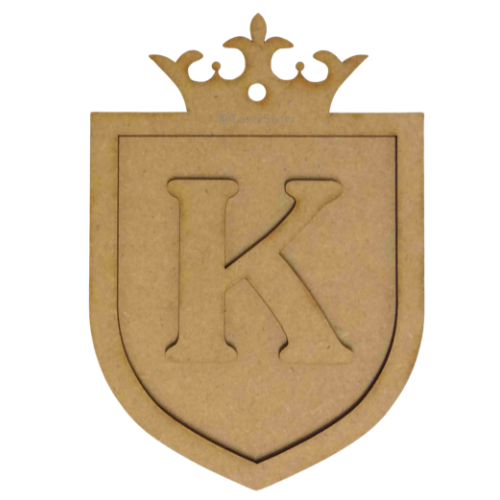
Initial letter door plaque square - LaserSister - KayVincent
laser cut door plaque initial
Small laser-cut door plaque

This is a quick and easy way to make a personalised door plaque for children (or yourself!).

As mentioned previously in an earlier post, this is the start of an “A-Z” resource of laser-cutting business tips and information. We’re starting with ‘Alphabet’ because there are so many ways to personalise objects with a laser cutter, and this is a great way to start earning money with your laser machine.

If you’re interested in creating your own designs then Pinterest  is great for picking up inspiration from the different types of door plaques …
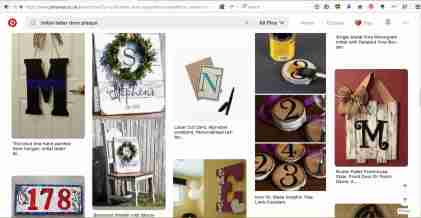
search results for alphabet door plaque
Pinterest search results

… but in the meantime here is a quick project if you are looking for instant gratification 🙂

Basically,

1) Download the free .pdf file below, of “Alphabet Door Plaque”. (If necessary, copy or import the designs into your blank file ready for cutting.)

alphabet door plaque – LaserSister 20171113

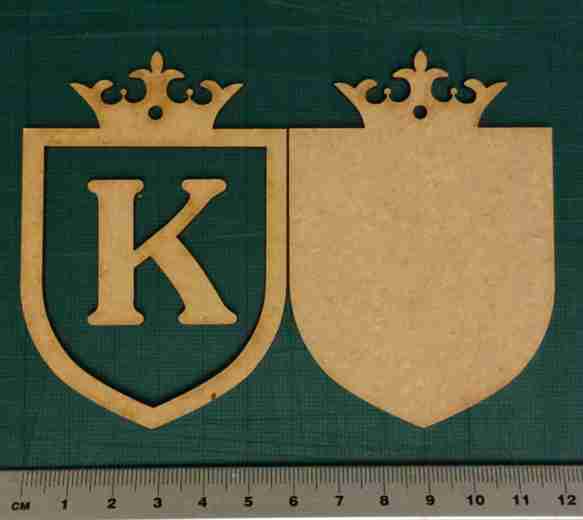
alphabet door plaque - laser cut initial shield
screenshot of “alphabet door plaque” file

2) Create your required (capital) letter of the alphabet in whichever font you prefer. (The “K” in the sample file happens to be in a Jasmine font, but please do experiment with your own; maybe the child you have in mind deserves a more delicate, refined-looking font, or perhaps they are more of a straightforward sans-serif person?)
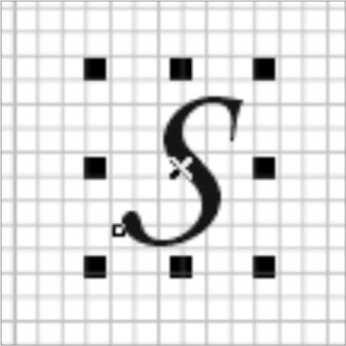
laser cut initial letter free project
e.g. of selecting different letter and font

3) Make sure the letter you just created has got a “hairline” width of outline, and preferably no colour filling (this is a lesson I’ve learned from accidentally etching a lot of items instead of just cutting them…)

laser cut initial letter door plaque free project
“S” with hairline outline and no colour fill.

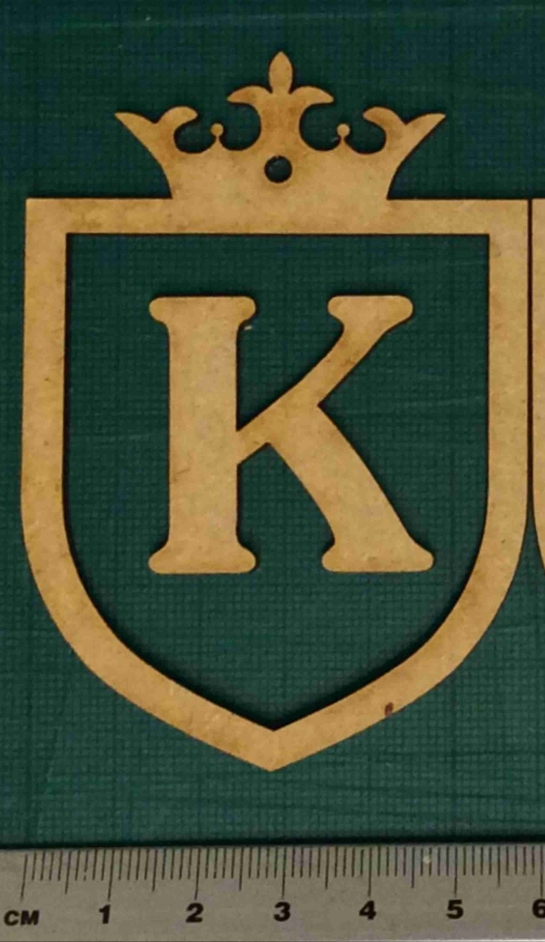
4) Check that the initial letter will fit inside the frame of the plaque. (This is down to personal preference, really, but as a guide the inside of the frame on the .pdf design is 50mm wide, and the “K” example letter is 35mm wide so it fits nicely inside the frame.)

initial letter S door plaque - free laser cutting resources
trying out different font sizes

5) Decide how big you would like the whole plaque to be. The example in the .pdf sample file is 60mm across, but you might like a bigger or smaller version. (Remember to change the size of the backing piece as well as the frame piece, if you are making the design larger or smaller.)

laser cut door plaque initial
Small laser cut door plaque

6) Decide whether you would like to include a hole in the piece, for hanging it on the door. If so, then keep the red circles in the cutting design. Otherwise, remove the red circles before you cut the pieces out.
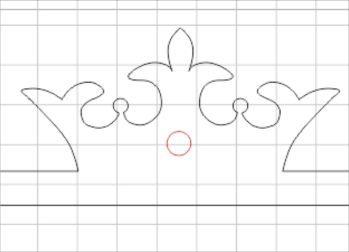
free laser cutting resources: initial letter door plaque
red circle/hole is optional

7) (Optional) Cut out the blue circle as a test piece, to make sure you have the correct settings for the laser.

free laser cutting resources: initial letter door plaque for children
Optional: cut out test piece

8) Cut out the plaque pieces

laser cut MDF letter and door plaque
Individual pieces cut out

9) Glue the frame and letter onto the backing.

laser cut initial letter door shield plaque
Assembled plaque

10) Paint/spray/decorate/sell the plaque.


If you have found this useful (or if you’ve got any suggestions for making the resources better), or if you’ve created a door plaque yourself, please comment, tweet @LaserSister, or share your photos on instagram.
Posted on Leave a comment

The A-Z of Laser Cutting

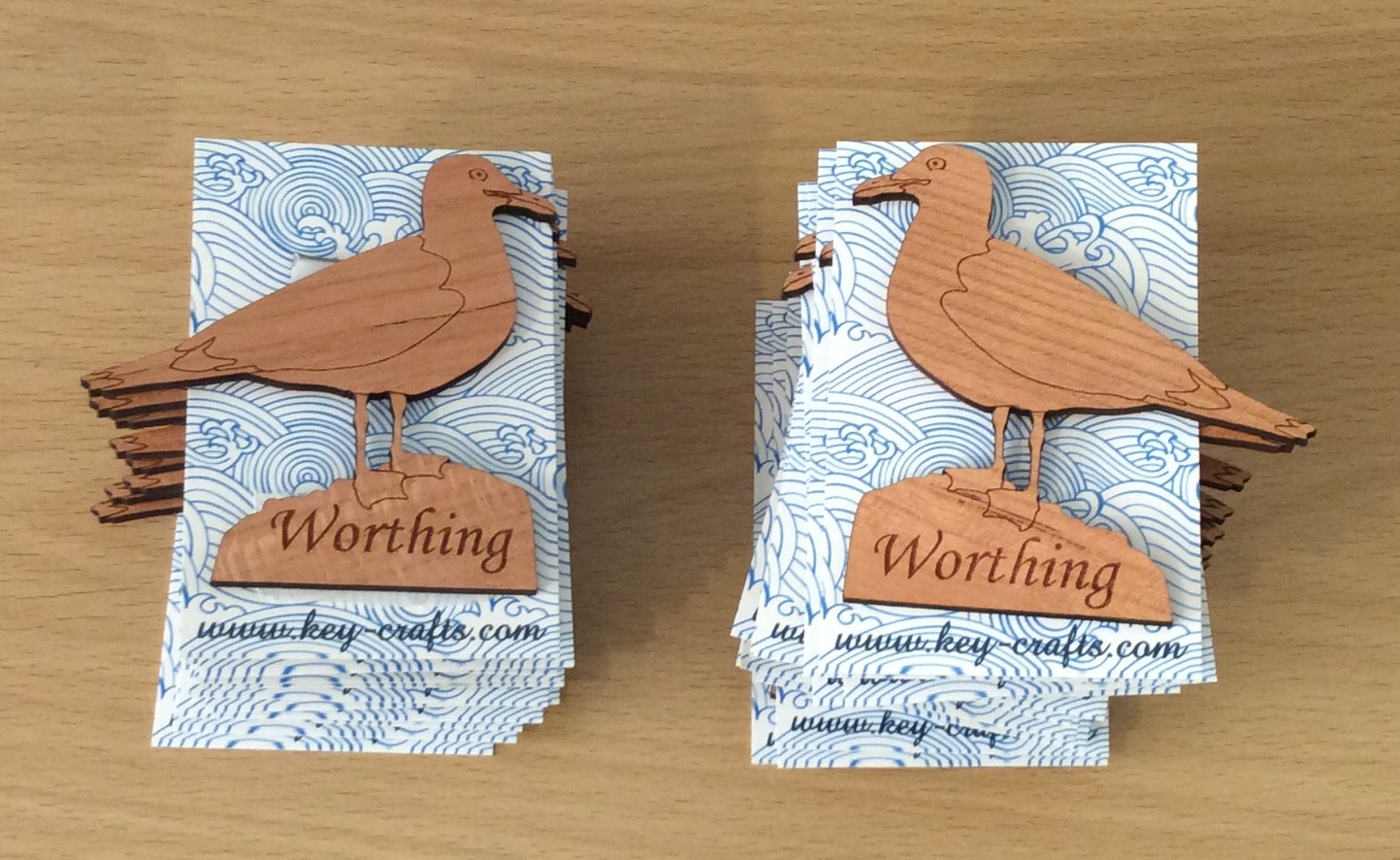
seagull fridge magnets - Kay Vincent LaserSister

I’ve had a VERY busy couple of months, since attending Autumn Fair! Here are some of the most recent items I’ve made:

Worthing fridge magnets - seagulls
Recent work: seagull fridge magnets

But now November has sneaked up on us, and that means the Christmas rush is about to start…

I’ve got several orders that I need to work on this week, but in the meantime I need to also think about re-stocking my etsy, ebay and folksy shops. And ordering some new business cards. And re-stocking actual physical shops and galleries where I sell my work. And approaching other shops and galleries where I’d like to sell things. And taking photos of products. And updating my website.

In the meantime, it’s NaNoWriMo (National Novel Writing Month). The idea is to spend 30 days writing a 50,000 word novel. But rather than write a novel, I might use the time (and words) to update this blog, instead.

As well as NaNo, I’ve decided to participate in Jeff Goins’s “500 Words” challenge, where the idea is to write 500 words per day, no matter what. So with the combination of NaNo and “500 Words”, I’m looking forward to writing a lot more about lasercutting in future.

Jeff Goins’ 500words challenge

Over time I’m aiming to create a resource for myself and others, where I can collect as many laser-cutting-business-related links as possible.

Some of the posts will have an alphabetical theme, and will focus a lot on products that can be created with a laser cutter. And some posts will contain a mixture of tips on saving time, saving money, and getting the most (and best) out of a laser cutter.

It’s not just all about me, though! I would really appreciate your help in creating the ‘library’ of resources. So if you’ve found a great article or technique or business/time/design hack, then please share it by leaving a comment, or tweeting @LaserSister. I’ll also look into setting up various other wiki-type resources, that can be added to by the lasercutting community as we all learn from each other.

Along the way I’ll try to create tutorials or articles on how to make money via a laser-cutting business. If you’d like to receive the articles and tutorials via email to make sure that you don’t miss any of them, please subscribe or sign up for the newsletter. That way you’ll be the first to hear about any new tutorials, tips, or downloadable files etc.

Screenshot from LaserSister tutorial

In the meantime it’s time for me to go and work on some more designs for customers. This week I will mostly be working on family trees for people who have ordered them as Christmas presents. Next week – who knows? 🙂

Save

Posted on Leave a comment

My Own List of Top 20 Laser Cutting Blogs

LaserSister trademark logo as laser-cut marquetry heart - background removed

Following on from yesterday when I was excited to find my blog in the top 40 of laser cutting blogs, I have been checking out other blogs on the list and here is a digest of my own favourites (along with the country they are in, in case you are looking for laser cutting services):

Gypsy Soul Laser Cuts (USA) is a lovely blog, with regular updates and lots of craft ideas. They sell laser-cut craft items.

Dragon Powered (UK) has got laser cutting files for sale, to save you having to spend hours designing your own. The blog includes interesting and original information, and technical advice.

Nice Cuts (UK) provide a laser cutting service, and have ideas about how you can use laser cut designs for your own business. They also occasionally have guest bloggers, who share their own experiences of using a laser cutting service.

CUT-TEC (UK) are a laser cutting service and they create really varied laser cut items – including in metal.

Mekkit.com (UK) are another company who produce really varied laser cut products, and have some great photos of their work.

The Altered State (UK) have got at least one great big laser and can cut and etch reeeeally big items.

LaserSister (UK) That’s me! I provide a laser cutting and etching service, but the blog also has technical information about laser cutting, plus news and trends from the lasery world. And will shortly include links to cutting files.

MBJD Laser (USA) seem to pick a different font colour and overall style for every blog post, but I forgive them because they are real people and giving real news about their laser cutting service and products.

Laser Flair (UK) have a laser cutting service and look like they can etch metal and giant pieces of wood for you.

Dot Laser (UK) produce really nice-looking and varied work for clients.

Bespoke Laser UK also produce great looking products, and do an especially nice line in laser-etched bespoke rubber stamps.

LASERCUTIT (UK) have a laser cutting service, for wood, acrylic, paper and card.

Just Add Sharks (UK) have got an article on making a totally mind-blowing ‘phenakistiscope’.

CutLaserCut (UK) work with artists and other businesses to make some really original pieces.

Ponoko (USA, NZ) allow you to upload your artwork, get an instant quote, and then cut and ship the item on the same day. WOW.

Reddit (www) has a thriving laser cutting community and this is a great place to browse and/or ask questions. It does contain quite a bit of spam, but you can easily lose hours just browsing if you are really into laser cutting.

MLC (AUS) have a laser cutting service in Australia, and the blog includes latest trends and news from the lasery world.

Able Engraving (UK) have a traditional engraving service as well as laser engraving, and are experts in signs and awards.

Google News (www) chews up and spits out laser-related news for your information and delight.

(OK, there are only 19 in my current Top 20 list. But the Top 40 list only had 33, so I win!)

Posted on Leave a comment

William Morris Style “K” Initial Coaster

William-Morris-style-coaster-square-LaserSister-KayVincent

Following on from the previous post where I was making some new cards with William Morris style alphabet designs, this is my latest experiment. Same design, but this time it’s etched onto a round wooden coaster instead of cut into card or paper.

Posted on Leave a comment

William Morris Style Alphabet Cards

William Morris style cards - Kay Vincent LaserSister

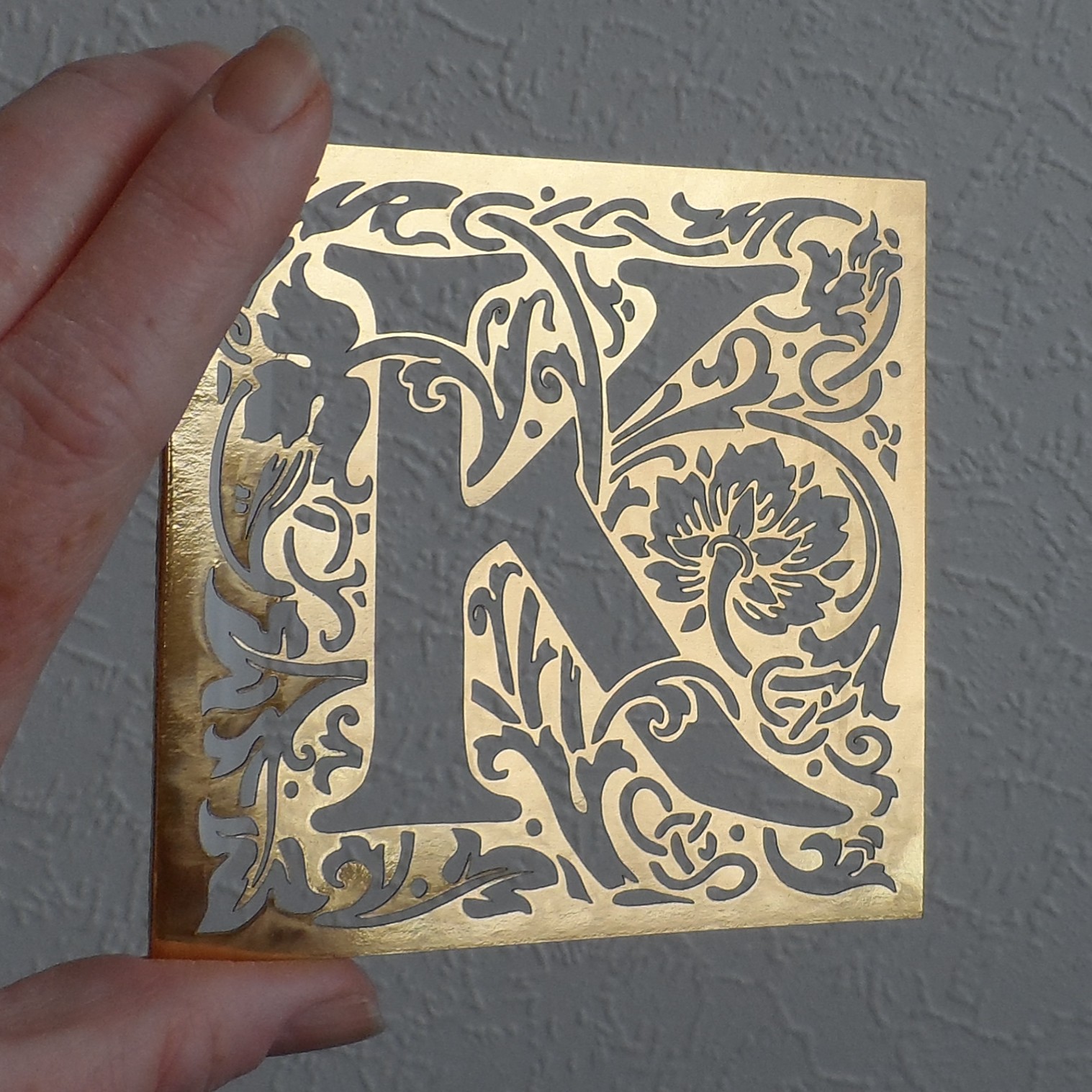
Over the last couple of days I’ve been working on a new set of cards, and here is the newest one; a William Morris (arts & crafts movement) style “K” card:

William Morris arts and crafts style letter "K" laser cut card - gold
Small Square William Morris Style “K”

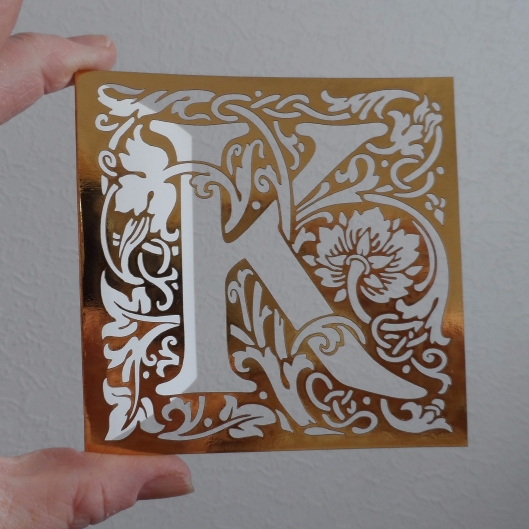
It can also be made as a card topper, which could be mounted on a bigger card:

William Morris arts and crafts style letter "K" laser cut card topper - black
William Morris style letter “K” laser cut card topper.


Posted on Leave a comment

Step-by-Step: How to Create Hand-Drawn Vectors for Lasercutting

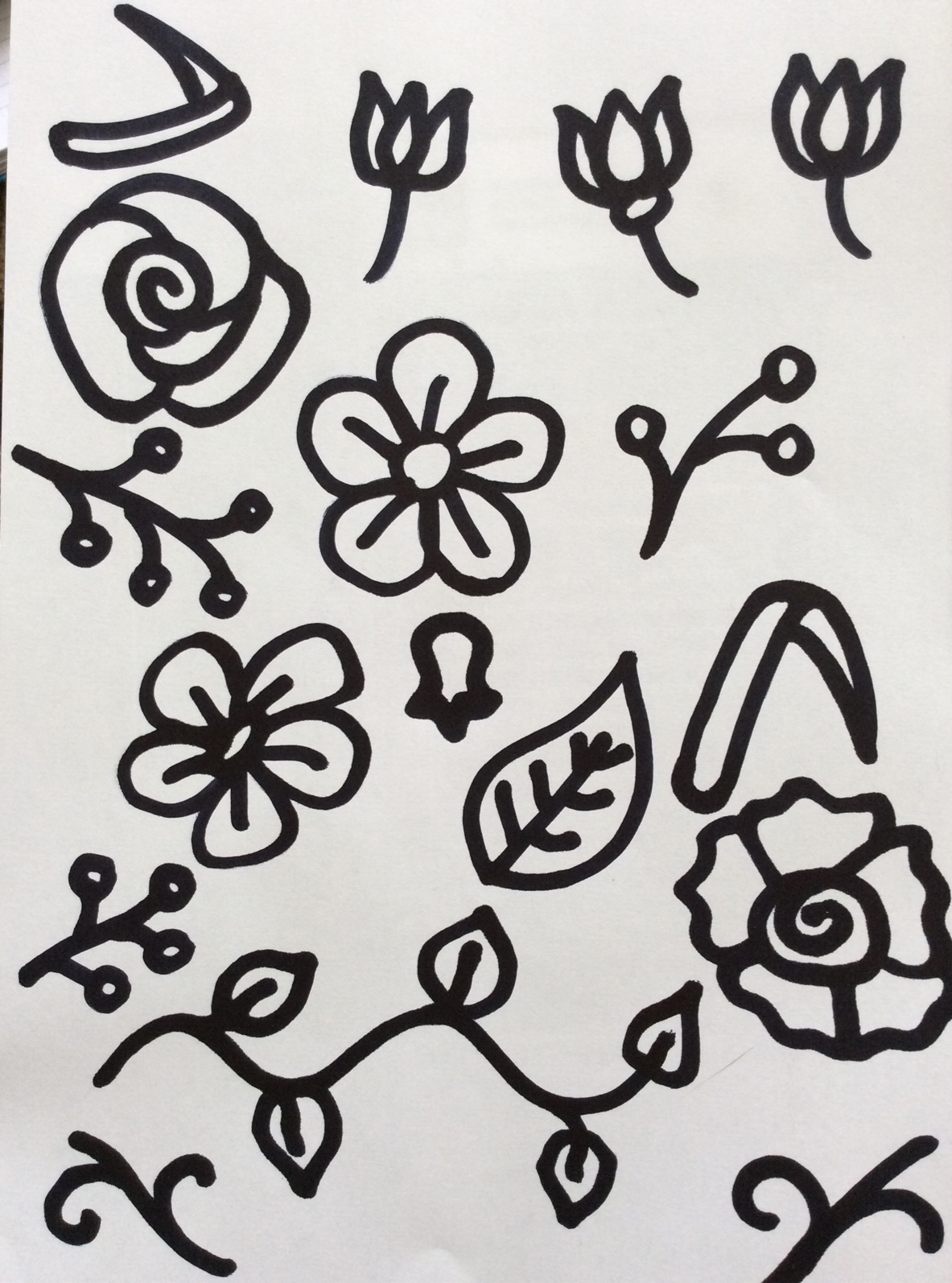
hand-drawn florals for lasercutting - Kay Vincent LaserSister

Laser-cut hand-drawn flower vector

The previous article described how to use ready-made stock vector images for lasercutting work, but sometimes (depending on how the artist created the original image) it can still take several hours of ‘tweaking’ to make them suitable for your own project.

What if you already know the sort of design you want, and could draw it quickly by hand but you’re stuck with using a mouse or trackpad that doesn’t quite do the job? This article will show a quick way to create hand-drawn vector images for your lasercutting projects, that you know will be exactly right for your work because you created them. Plus they’re original and you don’t need to pay anyone for the rights to use them!

You will need:

  • White paper
  • Thick black pen (e.g. a Sharpie, or I just get cheap markers from Wilko)
  • Drawing software (e.g. I use CorelDraw, or you could use Illustrator or others)

Step 1: Use the thick black pen to draw your designs.

Flower shapes for lasercutting, drawn with a thick black pen
Hand-drawn florals: thick black pen on white paper.

Step 2: Scan or photograph your hand-drawn image, and save it somewhere that you’ll be able to retrieve it from your drawing application.

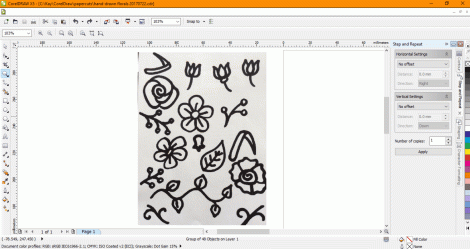
Step 3: Open your drawing software and import the image (in CorelDraw use Ctrl + I, and in Illustrator I think it’s File > Place)

Photo of hand-drawn flowers has been imported into CorelDraw

Step 4: Now you basically need to get the software to turn your photo (millions of pixels) into vectors (hundreds of coordinates), so you’ll be able to create a design that your laser can cut. In CorelDraw you can do this by selecting the image and then go to Bitmaps > Quick Trace. (In Illustrator it’s called Live Trace.) The software then simplifies blocks of colour and turns them into separate objects:

The black parts of the image have automatically been changed into black objects with smoother outlines.

Step 5: (Optional) The software doesn’t always get the conversion exactly right, so you might end up with an object made up of a couple of layers of colour (in the case below, there is a solid black flower outline, with some grey petal shapes on top of it, instead of being made of thin black outlines). In CorelDraw it’s easy to ungroup the object (Ctrl + U), and then highlight the group of object (e.g. the flower in this case) and go into Arrange > Shaping > Back Minus Front.

Left-hand flower looks like one object ready for lasercutting, but it's actually made up of a big black shape with six grey shapes on top of it.
Left-hand flower looks like one object, but it’s actually made up of a big black shape with six grey shapes on top of it.

Hand-drawn flower vector ready for lasercutting. Grey shapes have been removed, so the flower is now one object made of black lines.
Grey shapes have been removed, so the flower is now one object made of black lines.

Step 6: (Optional) If you want, you can copy shapes and/or move or re-size them until you have the design that you want.

hand-drawn florals combined.gif

Step 7: If you want to cut the shapes then make sure they have a thin or hairline-width outline, but if you just want to etch the shapes then they don’t need the thin outline:

Hand-drawn flower vectors with thin blue outlines, ready for laser cutting
Hand-drawn flower vectors with thin blue outlines

Step 8: (Optional) If you have combined several shapes in one design, you may need to ‘weld’ them together before you cut them. The laser cutter will cut anything that has a thin outline, and so in the example above, the three flowers would be cut out separately. To make sure the laser sees all of the flowers as one design and not as individual objects to cut out, you can use the ‘weld’ function (in CorelDraw it’s Arrange > Shaping > Weld.)

Hand-drawn flowers with one outline, ready for laser cutting
Hand-drawn flowers with one outline (compare the middle flower with the previous picture), ready for laser cutting

The design should now cut properly.

Laser-cut hand-drawn flower vectors
Laser-cut hand-drawn flower vectors (smaller and larger versions)

Posted on Leave a comment

Using Stock Vector Images to Fast-Forward your Lasercutting Business

search for vector images

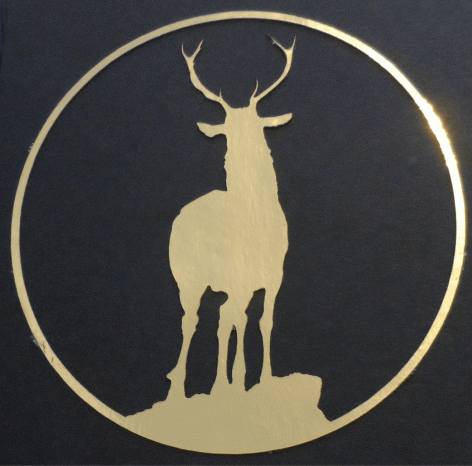
Gold deer silhouette card (credit: craftsmanspace.com)

If you have a laser business it’s often hard to find the time to create new designs when you are already busy with making existing products. One way to save time is to use existing “stock” images, to help fast-forward the design process.

There are many stock image services online where you can find existing vector designs, created by professional designers or independent artists. And each of these websites has a huge range of images, suitable for just about every occasion.

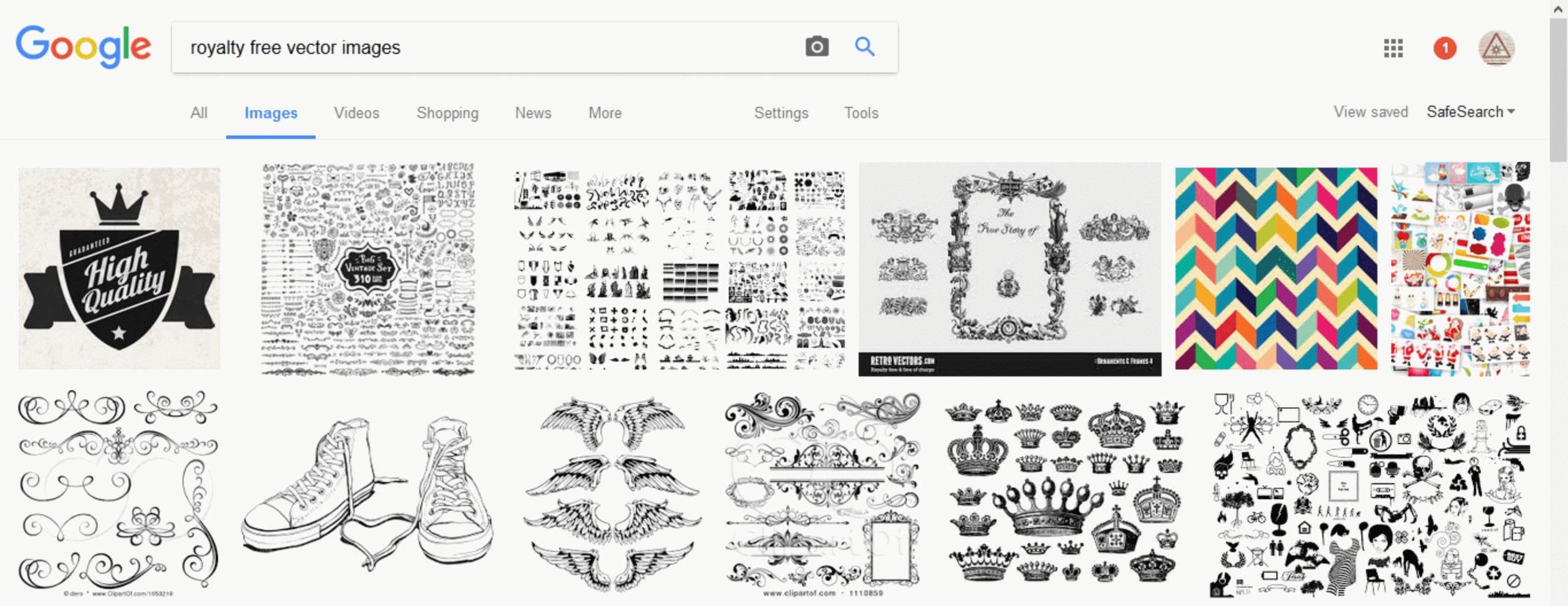
Just do a search for “royalty free vector images”, and you’ll find examples of services like Shutterstock, iStockPhotos, Adobe, Dreamstime, Vectorstock, etc.

Screenshot of search for free vector images for laser cutting
Screenshot of search for vector images

Note: Although these images are ‘royalty free’ (you don’t have to keep paying every time you use them in your own products), the designs do usually cost something to actually buy in the first place.

There are also different types of license that you purchase. It is often free or fairly cheap (e.g. $1USD, or £1GBP per image) to download an image if you are just buying it for your own personal use. However if you want to sell products with these images on them, you usually need to buy an ‘extended’ license, which lets you make multiple copies of the designs and sell objects which include them.

Screenshot of choosing a vector image license in Dreamstime

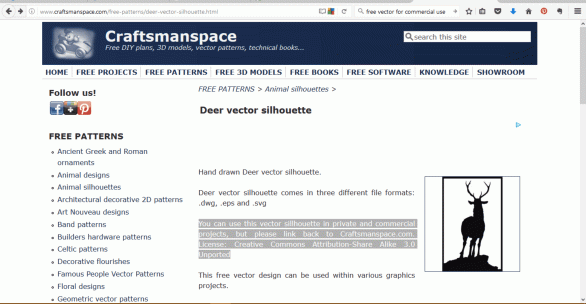
Luckily, there are also a few rare sites and collections which include free royalty free images (!) for commercial use. In other words, this is where either the image is out of copyright, or the artist has given permission for other people to make multiple copies of their designs and sell objects that include it.

Examples of some of these sites include CraftsmanSpace, Vector4Free, FreeVectors,  BUT be careful again that the license allows commercial use (i.e. it lets you copy the image and use it on products that you sell).

Screenshot of a free vector on craftsmanspace.com

Once you’ve found a suitable vector image on the website, here are the general steps you will need to follow:

Step 1: Download the image and save it in a folder or system where you’ll be able to easily find it again (e.g. create a folder called “vector downloads for commercial use”).

Step 2: Open a new document in your drawing/design software (e.g. CorelDraw).

Step 3: Import the saved vector into the new document.

Screenshot of free vector image imported into CorelDraw

Step 4: Then depending on your laser system: if you want to cut the image, make sure it has got hairline (or very thin) outline, and if you want to etch the image, make sure it hasn’t got the thin outline.

Gold deer silhouette card CREDIT CREATIVE COMMONS
Gold deer silhouette card (credit: craftsmanspace.com)

So that’s it. Instead of spending hours drawing and tweaking your own designs (when you could be doing some lasercutting), just search for a vector that you like, make sure that you’ve got the rights to reproduce it commercially, and download it into your drawing software.

Hope you find this article useful – if so (or if there’s something else you think I should have mentioned), please feel free to comment or use the Contact page. Cheeers.

Save